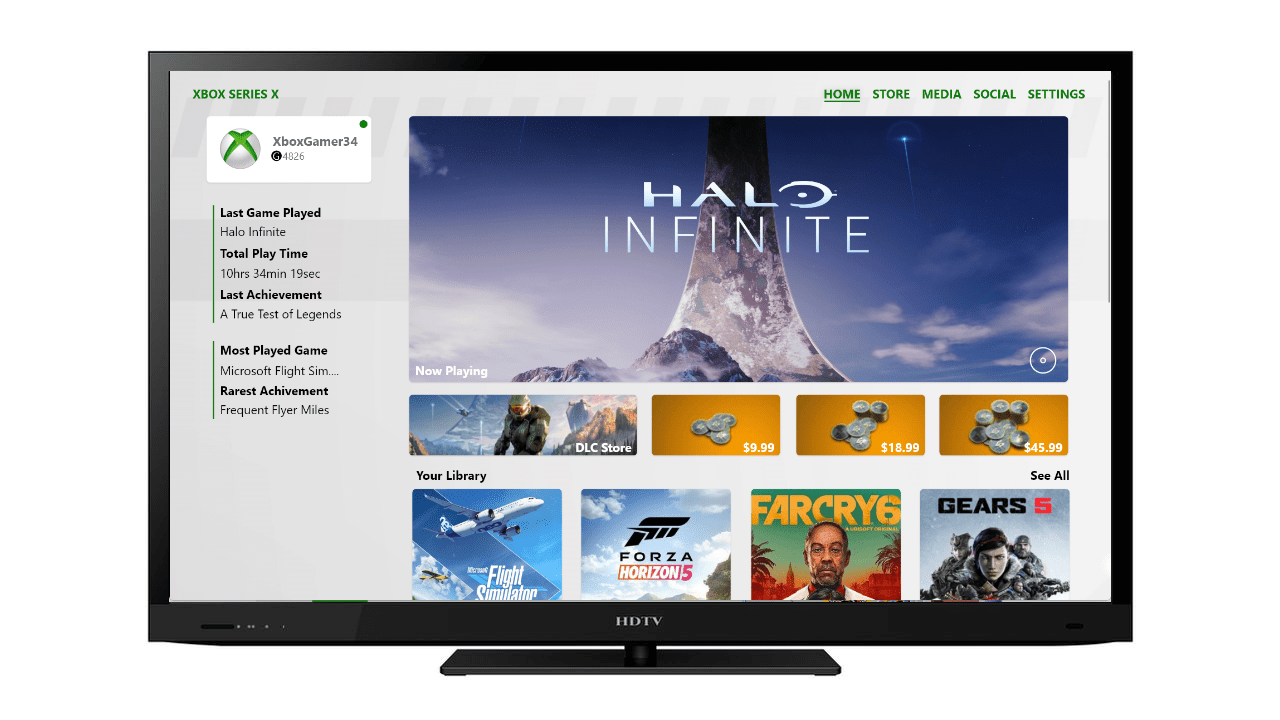
This project is in progress: Feel free to sign up with the site to get updates!
Test The Prototype
Original Xbox One Controller Required for Navigation
My Inspiration for this project and goal:
For my first post-class project I decided to go personal and take a crack at re-working the main menu on the Xbox One/Series consoles. My reason for doing this is when I bought an Xbox Series X last year, I was expecting that new console experience. But when I started it up, I was greeted with the exact same screen that was on my Xbox One X. It was nice that it was familiar but also a tad disappointing given I just dropped $500 on a new console and didn’t quite have that new console experience. I bought a PS5 as well and when I started that up it felt like an event, complete with a new menu system. Sure it had a similar style to the PS4, but it wasn’t an exact copy so it still felt fresh.
Of course, reworking a main menu, especially one on a gaming console, is a big undertaking and wouldn’t make sense if the main reason was just for the sake of being different. No, I actually had another reason. When I turn on the PS5 or Nintendo Switch, gaming is front and center. With the Xbox, you are met with a cornucopia of images and ads all trying to get your attention.
However, I wanted to see what it would be like if the system was only focused on games. Almost as if you had the option to have a more gaming focused home screen so you had quick access to your games. I want to turn the console on and be hit in the face, figuratively, with games.
I feel that explains pretty well why I decided to try my hand at redesigning it so games are front and center while also being intuitive and easy to navigate for the user. To make sure I was starting on the right foot I interviewed six fellow gamers and explained what I was looking to design. I wanted to see what features they would like to see or use. The general consensus was the ability to have quick access to games and any add on content. Once I had my problem statement and goal set, I got to work on ideating. I used Crazy Eights to hammer out a few designs and decided that the card-based setup with a side bar would be the best choice.
Problem Statement:
Stephen is an avid gamer that wants to be able to quickly and easily find his games because he only uses his console for gaming and the other menus distract him when he is trying to close out or switch games.
Key User Flows:
First, Users wated to be able to turn on the system and in mere seconds be able to be into their game with the press of a button, no matter what was currently highlighted on the screen.
Second, users the other screens to be easily accessed no matter where the user was on the current screen by using the shoulder buttons to navigate to each screen.
Third, users wanted a guide menu with only a few options for quick navigation and switching.
Here is a screenshot of my first wireframe for the main page.
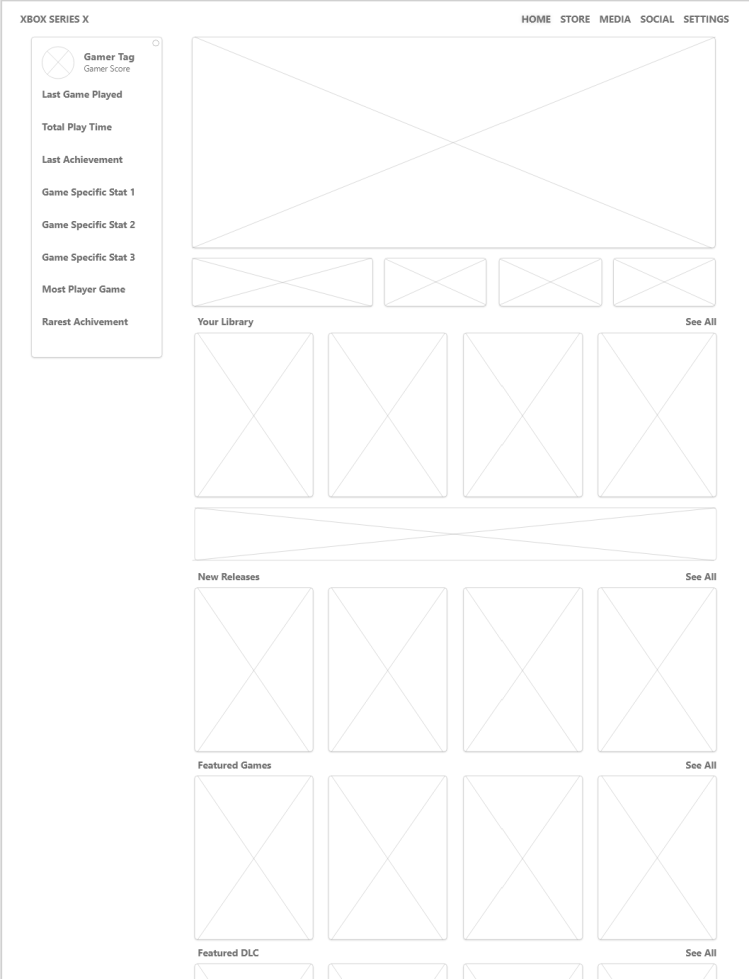
Front and center will be a big banner of the game that is currently in the disc drive, or if you were playing a digital game, the last game you played.
Underneath that will be quick access to that game’s DLC store and the top three most popular addons.
Below that the user will find the rest of their game library underneath in a carousel style slider and then a quick access bar for Game Pass.
Under that the user will find New Release game and ones that are featured/On Sale
I added a side menu that will change depending on what screen the user is on. For the main menu, to keep it game focused, it shows stats and highlights relevant to the game they are playing to keep them engaged. The top right has the nav bar that is navigated by using the shoulder buttons on an Xbox One controller.
For the guide menu I thought of just a small drop-down menu to try and keep a sleek, modern look. That ended up changing and getting bigger. The store features the same style of card system, but the top selections are larger and will change depending on what submenu the user is on. Below that is a bar to access Game Pass and then a selection of other games like new releases, tailored selections and exclusives will follow below.


I had users look over the design to see if it met their needs for a game focused menu and there were a few suggestions. I ended up changing the look of the side menu bar as well as the guide menu. The users told me they want a guide menu that takes little effort to navigate. The current Xbox menu is chock full of content and what the users told me is that they mainly just use it to navigate back to the home screen, quit their game or turn off the console. So I made the guide menu laser focused on just a few quick features.
Here are some mockups after making changes based on user feedback.
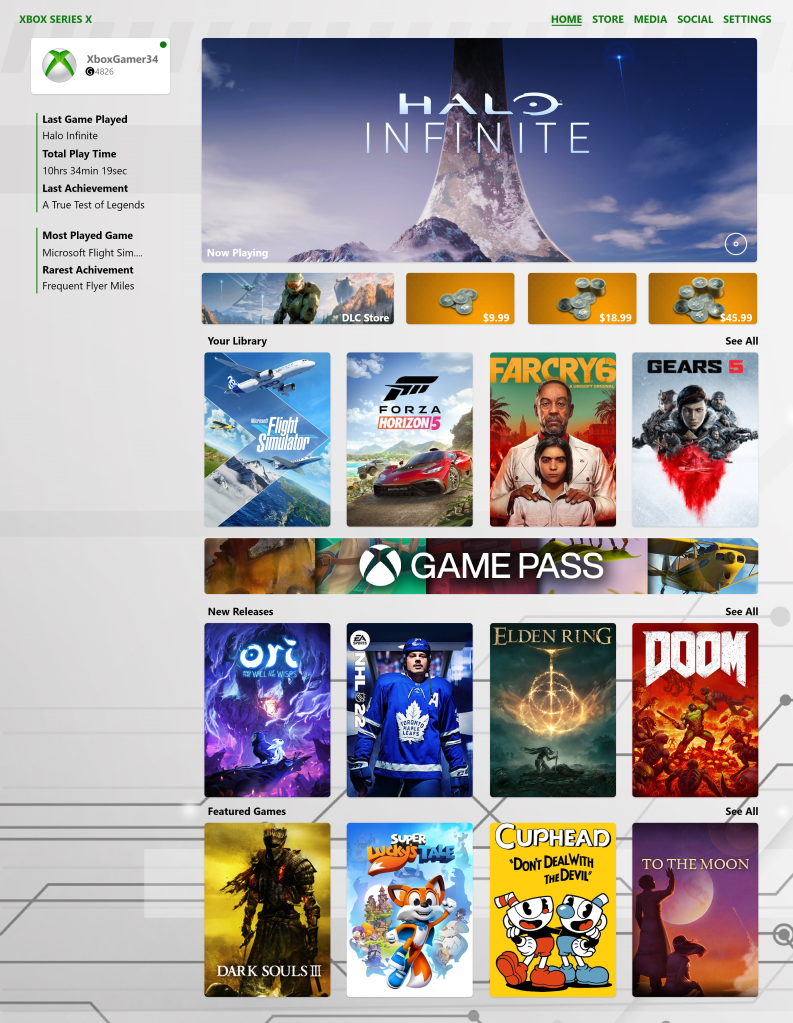
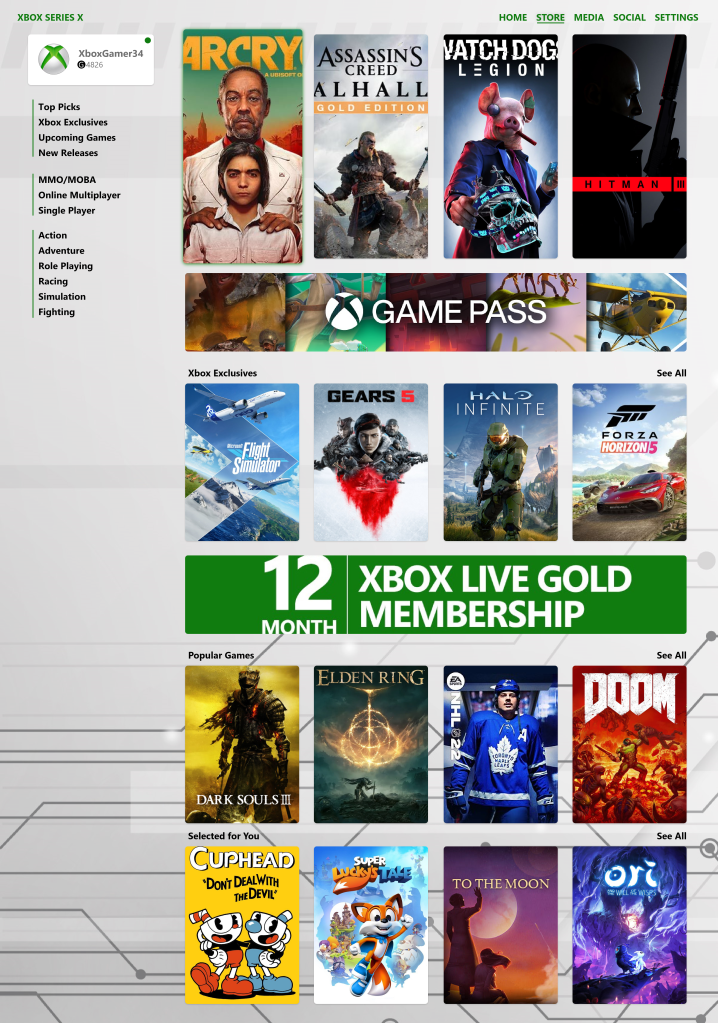

All mockups are made for a 4K resolution. I’m currently working on making a prototype with functional navigation. Once I’m happy with it I will do a usability study on it and see how the users respond to it. I feel I made what my initial research told me it wanted, but until it gets into the hands of the people that would use it, you never know.
Update: 1.30.22
I started working on an initial log in screen where you can quickly select your user profile with shoulder buttons.

I wanted some practice making a carousel menu so that’s the style I went with. I wanted something simple that the user could fly through in a matter of milliseconds and get into the game. The user flow is designed so the user can just hit X twice after the system is turned on to immediately get into their current or last played game.
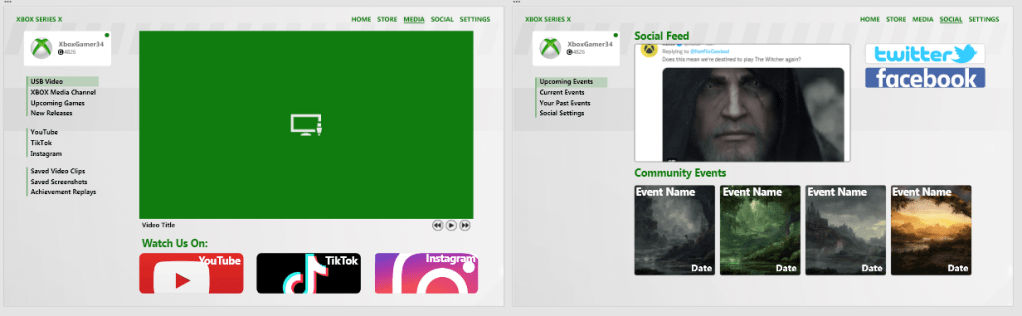
I also started mocking up the Media and Social Screens. As I mock them up, it feels like I could combine the two, but I will have user testing tell me if that is what they want.
Update: 2.1.22
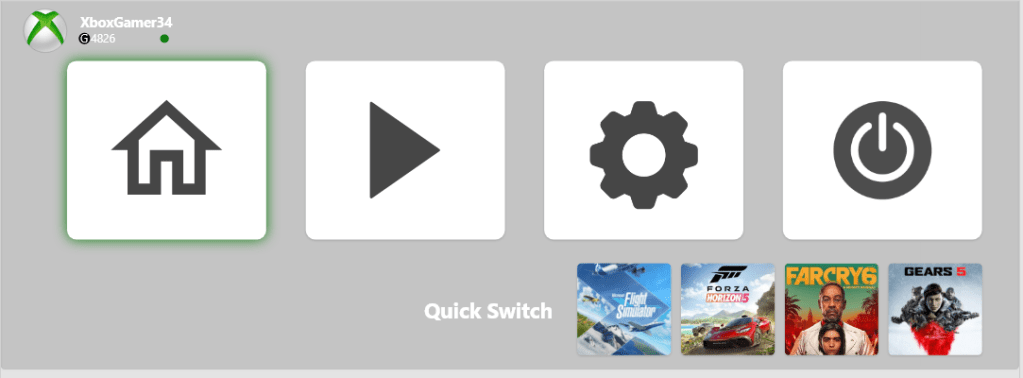
After user feedback I added previously played, or recently installed games, to the guide menu.
Test the Prototype!
If you want to try it yourself, click the link and leave me feedback. You will need an original Microsoft Xbox One controller to navigate it. It will not work with third party controllers. You will also need to user the mouse to scroll down as thumbstick scrolling is not yet included in Adobe XD. Note that the guide button is not currently supported in Adobe XD so you have to press the “View” button which is to the left of the Guide Button for the Guide Menu to appear.
Please note that these are mockups and it’s a work in progress, so animations are basic and navigation is extremely limited as not all areas have been mocked up yet. This is just a visual representation of what I am envisioning, not full working demo. But if you’d like to see it in action, feel free to click here: Xbox Gamer Focused Menu Concept
Next Steps:
Finish mockups and continue user testing. Want to help out with user flow testing? Click the link and drop a comment below.
 Stephen Wilds UX Designer